Context matters. What your users read at any given moment determines what feels relevant and what gets ignored. The Keywords condition lets you align ad delivery with that context by checking whether a specific term appears on the page.
Instead of manually assigning ads, you use your content as the trigger. The condition evaluates the article in real time and decides if an ad should load based on defined keywords.
Keyword targeting works best when it connects content with a clear user intent. Instead of hardcoding ads into specific posts, you define triggers once and let AdPresso handle the matching across your entire site.
You can apply the condition to individual ads, ad groups, or entire placements.
The item will now load only if the keyword logic matches the page content. If you want to target multiple keywords, add additional keyword conditions separately or use a regex pattern (see detailed examples below).
For a broader explanation of how to use conditions in AdPresso, see the general conditions documentation.
In this example, we focus on a product-driven scenario around lever espresso machines.
Let’s assume you run a coffee blog and have an ad group with various affiliate creatives. Your audience is naturally split into different interest groups. Some readers value manual craftsmanship, while others prioritize automated convenience. Since your blog covers both, you want to ensure your ads align with readers' current mindset. A reader looking for high-tech automation is unlikely to click on a manual lever machine.
By targeting specific keywords and excluding opposing ones, you reach the right segment at the right time, which significantly increases your relevance and conversion rates.
Make sure the ad is assigned to your ad group and that the group is already connected to an active placement. Your existing setup handles the placement and rotation, while the Keywords condition ensures contextual relevance.
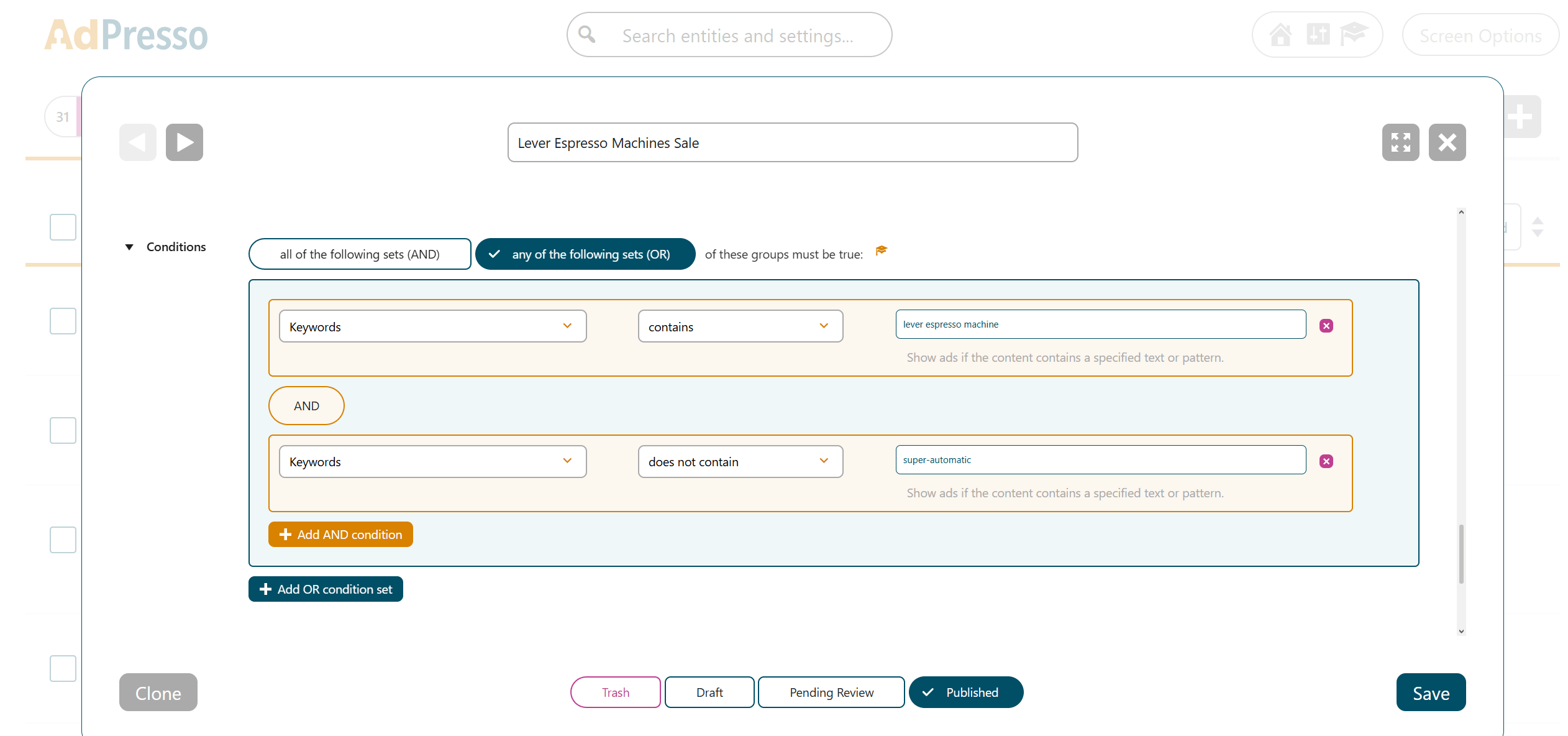
From this point on, the ad will automatically appear in all content that includes the targeted keyword, but AdPresso prevents it from appearing in articles focused on push-button convenience. You can repeat the same logic for additional products, categories, or intents and gradually build a system that maps your content to the most relevant ads.
Standard keyword targeting works well when you know exactly which terms you want to match. However, real-world content is rarely that uniform. Authors use different spellings, varying formats, or technical shorthand.
This is where RegEx (Regular Expressions) comes into play. Instead of matching a single, static word, you define a pattern. The Keywords condition then checks if the content fits that logic. This allows you to cover entire topic clusters with a single, smart rule.
Think of RegEx as a set of flexible instructions. Instead of looking for an exact word, it looks for a pattern. For example, if you want to support both British and American English, you can use the Optional Character (?).
The pattern Colou?r tells the system that the "u" is optional, so it matches both "Color" and "Colour".
Here are a few simple examples:
?): Colou?r matches both "Color" and "Colour".|): Coffee|Espresso matches either "Coffee" or "Espresso".\s?): 58\s?mm matches "58mm" and "58 mm".If your ad is relevant to an entire category rather than a single product, you can use the OR operator (|) to match multiple terms at once. This is much faster than creating separate conditions for every single keyword.
For example, you want to show an ad for "Barista Accessories" on any page that mentions core brewing tools like tampers, pitchers, or scales.
The RegEx Pattern could look like this one:
\b(tamper|pitcher|scale)\w*\b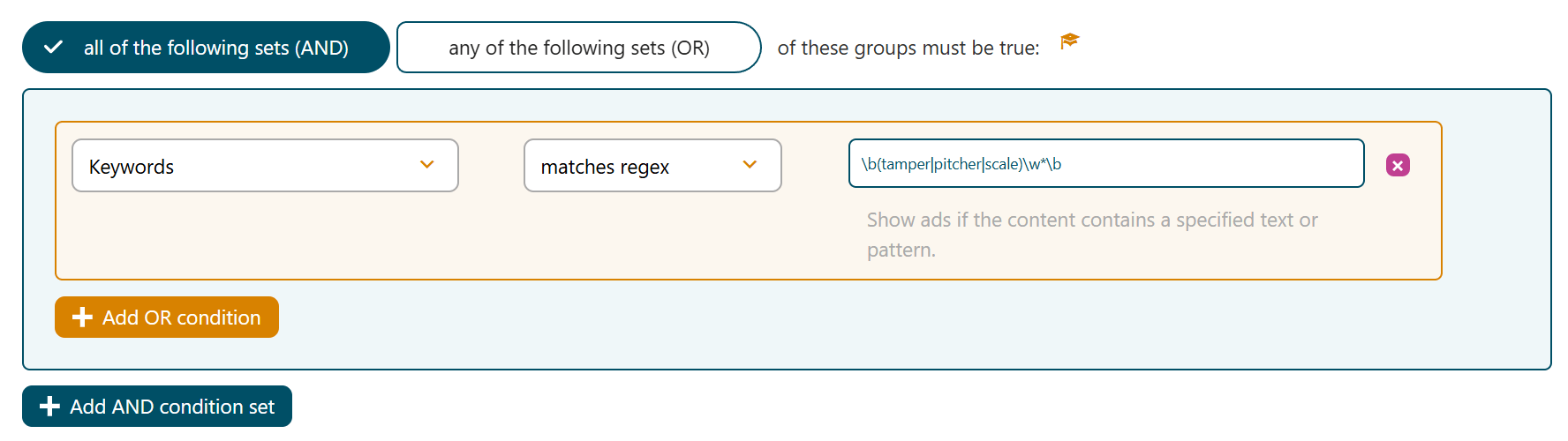
This single line acts as a net. Because of the \w* wildcard, it automatically catches both singular and plural forms (like "tamper" and "tampers") as well as variations like "scaling", ensuring your ad appears across all relevant equipment guides without any extra manual work.
A perfect example of this power is the E61 brew group. It is a technical standard used across dozens of high-end espresso machine brands. Readers engaging with this topic are typically "prosumers"—enthusiasts who are likely to invest in premium upgrades such as precision filter baskets or bottomless portafilters.
Rather than maintaining a list of 50+ brand names, you can use one RegEx pattern to detect any article mentioning this specific technology and its related tools. The goal is to automatically inject ads for premium accessories (58 mm) whenever a page indicates high-end espresso content.
\b(E-?61|58\s?mm|portafilter\w*)\b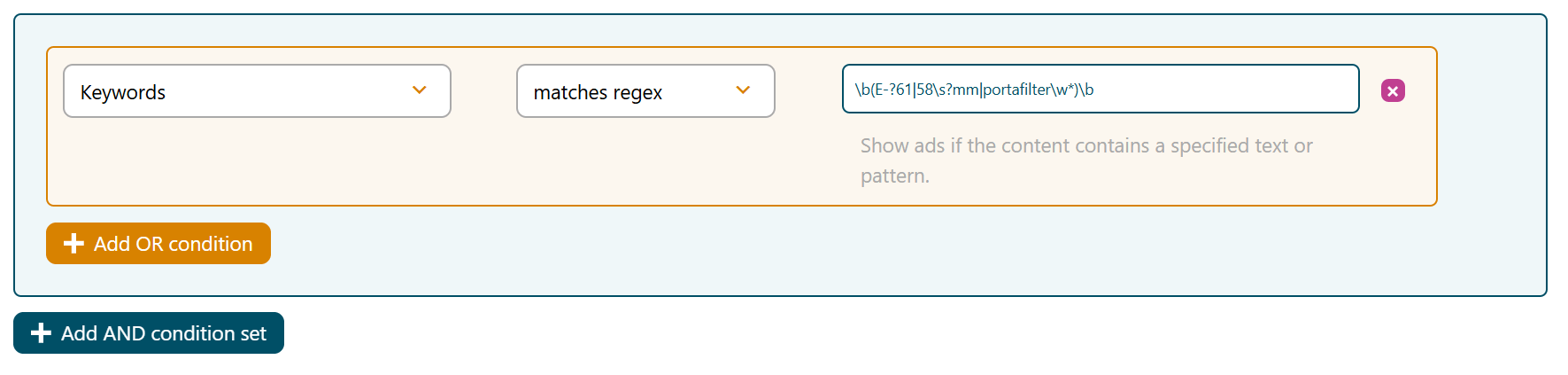
| Component | Function | Example Result |
|---|---|---|
| \b ... \b | Word Boundary: Ensures only whole words are matched. | Matches "58mm", but ignores "158mm". |
| E-?61 | Optional Hyphen: The ? makes the preceding character optional. | Matches both "E61" and "E-61". |
| | | OR Operator: Tells the system to look for any of these terms. | Matches either "E61", "58mm", or "portafilter". |
| \s? | Optional Space: Handles different spacing styles. | Matches "58mm" and "58 mm". |
| portafilter\w* | Wildcard: Catches any additional letters following the word. | Matches "portafilter" and "portafilters". |
This method creates a flexible targeting layer. Instead of reacting to individual words, you define the structure of what matters. It scales naturally because you can group entire technical concepts into a single condition.
Always test your RegEx with a few sample articles before going live to ensure you aren't accidentally matching unwanted terms.
Use Regex101.com to test your patterns. Just paste your article text into the "Test String" field and see your RegEx highlight the matches in real-time.
You don't need to be a RegEx expert. You can use LLMs like Gemini or ChatGPT to generate these patterns for you.
Simply ask:
"Create a RegEx pattern that matches 'E61' with and without a hyphen, '58mm' with and without a space, and the word 'portafilter' including its plural."
