Ad Groups act as entities between placements and individual ads, enabling you to manage multiple creatives within a single position. By assigning an Ad Group to a placement, you activate dynamic delivery without ever touching your website layout or theme files.
This structure enables advanced optimization techniques such as automated ad rotation and split testing. Rotating multiple creatives within a single position reduces banner blindness and keeps recurring visitors engaged, while the Ad Refresh feature increases impressions by reloading ads during longer user sessions. You can also transform groups into specialized layouts—such as grids, sequences, or sliders—to match your design requirements.
Ad Groups significantly simplify long-term maintenance by centralizing your creative logic. Instead of editing individual placements across your site, you manage all changes, rotations, and performance optimizations directly within the group modal.
You can access ad groups in two ways inside the WordPress backend. There is a dedicated submenu for managing all groups. In addition, the Ad Group tab inside the placement or ad modal provides a quick shortcut that takes you directly to the overview page whenever you need to edit or create groups.
When you create a new group, the configuration modal opens automatically and lets you control the group's structure and behavior. You can add or remove ads, choose the display method, and fine-tune how AdPresso rotates or refreshes the creatives.
In the following sections, we will walk through the available settings step by step.
In the Assignment section, you populate the group with individual creatives. Click the "Assign ads to this group" button to access your inventory and filter for specific units. Once you assign your ads, the management table displays their publication status and active conditions.
The ad weight setting serves as your primary control here. It determines an ad's delivery probability relative to other members of the same group. By assigning a higher weight, you increase the frequency with which that specific ad appears during random rotations—a standard technique for prioritized campaigns or weighted split testing. Once you set the weights and save the configuration, the group possesses a functional ad pool ready for deployment.
The Output Options define how AdPresso will show the ads from this group on your website.
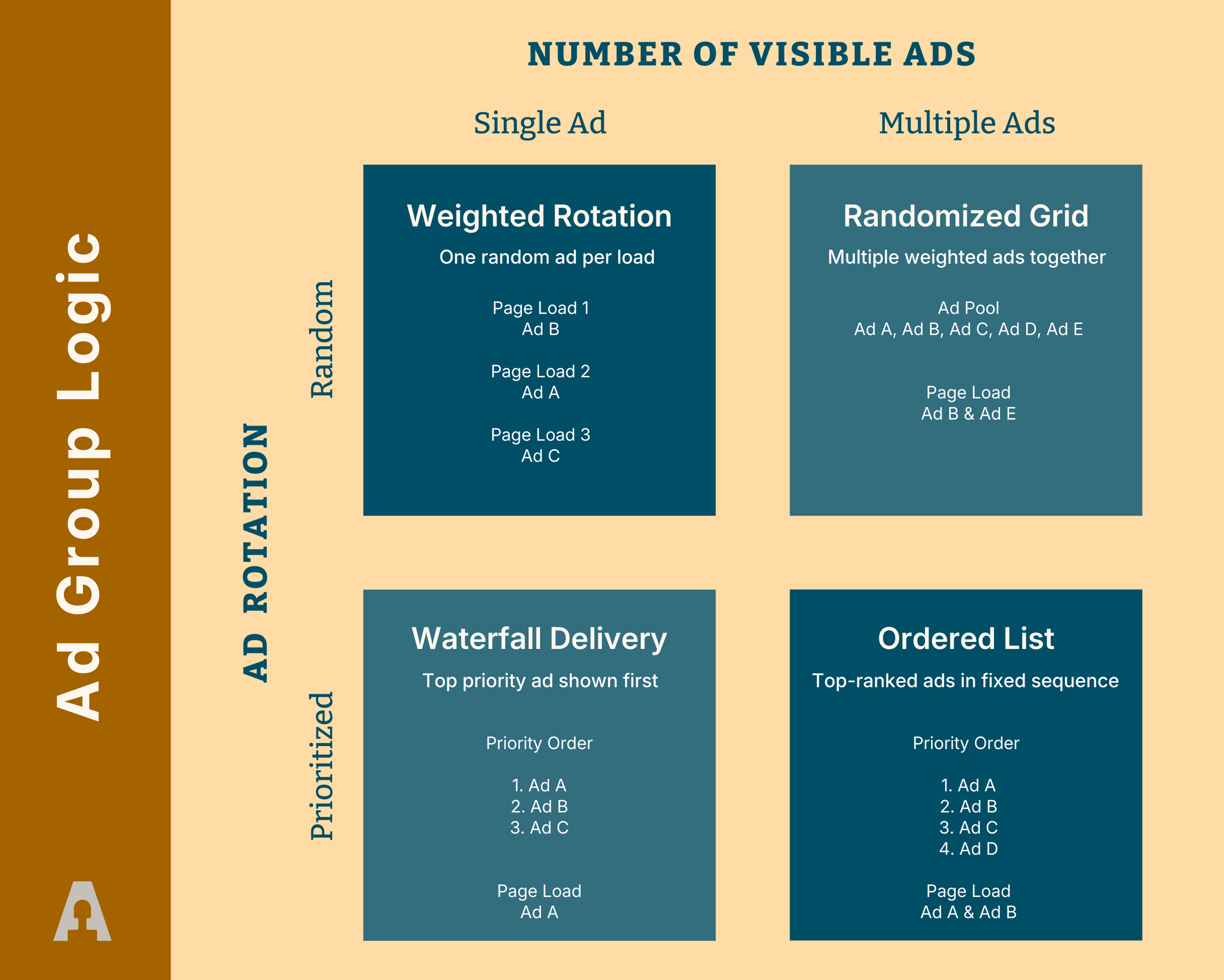
The Output Options define the group's structural behavior when it loads on the website. The core setting in this section is the number of Visible Ads, which determines the basic output logic and unlocks further configuration fields based on your selection.
Entering 1 in the visible ads field is the most common configuration. In this mode, AdPresso selects a single ad from the pool to display when the placement loads. This is the standard setup for diversifying monetization through rotation, performing A/B tests between different layouts, or serving device-specific creatives within a single position.
If the number of visible ads exceeds 1, AdPresso will draw the specified number of ads from the group pool to display them simultaneously. Choosing this multi-ad logic automatically reveals additional settings to define the Output Mode and Visual Layout. This allows the creation of complex ad structures, such as grids or sequences, in which multiple ads from the same group occupy the same placement at once.
When more than one visible ad is specified, you must define how AdPresso organizes the selected ads within the placement's layout. Each ad is inserted based on its priority value within the group pool.
The Sequence mode embeds the selected number of ads in a linear vertical order.
The Grid mode organizes ads into a structured, multi-column layout. This format is helpful to build partner modules, sponsor sections, or compact multi-banner placements. Selecting this mode unlocks granular layout controls:
AdPresso provides different modes to control how you select ads from a group and how they behave once loaded. You can switch between a randomized delivery model and a fixed, priority-based order.
When you enable randomized delivery, AdPresso selects ads from the group pool according to a probability distribution. This setup works best for rotating advertisers, conducting A/B tests, or shifting traffic toward higher-performing creatives.
In this mode, Ad Weights govern the selection process. Each ad in the assignment table carries an individual weight value that determines its selection probability. Ads with higher weights appear more frequently than those with lower values. This mechanism allows you to maintain a dynamic rotation while systematically prioritizing specific high-value campaigns.
If the random option is disabled, the group switches to Priority-based delivery. This mode gives you control over the exact delivery sequence of ads.
Once active, the Priority column replaces the weight settings in the management table. AdPresso delivers ads in descending priority order, starting with the highest. If multiple ads share the same priority, the system randomizes their specific output order. This logic provides a structured sequence and serves as an effective way to establish reliable fallback ads.
Independent of the selection logic, the Ad Refresh option controls the timing of the ad reload. This setting allows you to define a specific interval (in milliseconds) after which the ads within the placement automatically reload.
By setting a refresh period, the placement can cycle through the group's ad pool during a single user session without a page reload.
Ad Groups integrate fully with the AdPresso conditions system. You can restrict delivery based on content properties—such as categories, tags, or keywords—or on visitor characteristics, such as device type and URL slugs.
AdPresso evaluates these rules as a pre-selection check before delivering any ads. The system only displays the group if the current page or visitor meets all defined conditions. This hierarchical logic simplifies your workflow by letting you manage complex targeting from a single interface. Instead of configuring multiple individual ads, you can target an entire set of creatives to a specific post category or mobile device.
AdPresso offers several ways to integrate ad groups into your website. While you can insert groups directly via shortcodes or blocks, connecting them through the Placements system provides the most robust and scalable workflow.
To retrieve a group's shortcode, visit the Ad Groups overview. You can find the code in the Quick Edit menu or enable the Shortcode column via the Screen Options at the top of the page. Copy and paste this code into your content, widgets, or custom fields.
Add the AdPresso Block to any post, page, or widget area and select the desired ad group from the dropdown menu. This method works well for manual, visual positioning within the WordPress editor.
AdPresso offers several ways to integrate an Ad Group into your website. While you can embed groups directly using their own shortcodes or the block editor, the standard for any professional setup remains the connection through placements, as only the placement layer unlocks AdPresso’s full technical suite. This includes essential features such as Lazy Loading, AdBlocker fallbacks, and advanced layout controls.
In practice, this means that even if you want to display an Ad Group at a single, specific location, creating a Manual Placement is the more efficient path. Instead of using the group's shortcode directly, you embed the Manual Placement. This ensures you retain control over global settings and technical optimizations without ever needing to edit the post content or theme files again.
Use this method to hardcode an ad group into your theme templates, such as custom header zones or dynamic layout elements. Although we generally recommend using a placement even for template integrations, you can execute the group shortcode directly in your PHP files:
<?php
if ( shortcode_exists( 'your_shortcode_here' ) ) {
    echo do_shortcode( '[your_shortcode_here]' );
}
?>
Note: Replace the placeholder with the actual shortcode from your Ad Group overview.
