Conditions in AdPresso allow you to define exactly where an ad should appear — and where it shouldn’t. Instead of placing ads everywhere and hoping they perform well, you can use conditions to refine ad delivery based on page attributes or visitor characteristics.
The key idea is simple: conditions act as filters. They do not inject ads themselves. That task belongs more to Placements. Conditions only evaluate whether an injected ad is allowed to appear in the current situation.
In practical terms, this means conditions always operate restrictively. They limit ad delivery to specific contexts, such as particular pages, categories, or visitor groups. This limitation allows excluding placements where ads would perform poorly, interfere with the layout, or be irrelevant to the user.
If an ad should appear wherever a placement exists, you usually don’t need any conditions. They become useful once you want to refine delivery — for example, when an ad should only run on certain articles, hide on specific pages, or target a particular audience segment.
You might also apply conditions directly to placements. In that case, the entire placement will load only if it meets the defined conditions. Adding conditions to entire placements, rather than to multiple ads, can be a huge time-saver in particular setups.
AdPresso organizes conditions into several logical groups. Each group evaluates a different type of information about the current page or visitor.
Content conditions focus on characteristics of the content itself. These include attributes such as the author, URL structure, categories, or keywords in the page content. They are handy when ads should only appear within specific editorial contexts.
Audience conditions relate to the visitor viewing the page. They allow you to display or hide ads based on factors such as the device used, the visitor’s language, or the user’s origin. This user targeting enables you to tailor ad delivery to different user segments without modifying your content structure.
Meta conditions evaluate technical properties of the page. These include metadata such as the active page template and special system pages, e.g., 404 error pages. These conditions are especially useful for handling edge cases or excluding pages that should never contain ads.
Across all these groups, the underlying principle remains the same: AdPresso checks a set of conditions and decides whether to show or suppress an ad for the current page view.
| Section | Condition | Description |
|---|---|---|
| Content | Author | Show ads based on selected authors. |
| Content Age | Show ads based on selected content age (in days). | |
| Post / Page | Show ads based on selected posts and pages. | |
| Parent Post / Page | Show ads based on selected parent pages, including child pages. | |
| Post Content (Pro) | Show ads if the content contains a specified text or pattern. | |
| Audience | Device | Show ads based on selected device types. |
| Browser Language | Show ads based on selected browser languages. | |
| Browser Width (Pro) | Shows the ad based on the size of the visitor's browser window. | |
| Use Role (Pro) | Shows the ad based on the size of the visitor’s browser window. | |
| Referrer URL (Pro) | Shows the ad based on the visitor’s user role. | |
| Meta | General Pages | Show ads based on selected general page types (e.g., Search, 404). |
| Post Type | Show ads based on selected post types. | |
| Page Template | Show ads based on selected page templates. |
You can configure conditions for ads, ad groups, and placements directly inside their edit modal. Each of these elements contains a dedicated Conditions section, where you define the rules that control when the item should appear.
If an ad should run everywhere a placement exists, you don’t need to configure any conditions at all. In that case, AdPresso delivers the ad wherever the placement is active.
To add a condition, open the edit modal of the item you want to configure and scroll down to the Conditions section. Click the button to add a new rule, choose the desired condition from the dropdown menu, and adjust the settings depending on the selected option. This section is the place where you define the attributes that must match for the ad to appear.
Once you start adding multiple conditions, you can also define how these rules interact with each other. Utilize the logical operators AND and OR for this task. While this concept can sound technical at first, the AdPresso interface simplifies it by letting you build the logic visually rather than writing complex expressions.
When you add more than one condition, you decide whether the new rule should work alongside the previous one or provide an alternative path for displaying the ad.
The AND operator means that all connected conditions must be true. If even one of them fails, the ad will not appear.
The OR operator works differently. It means that only one of the connected conditions must be true. If any of them match, the ad can still show up.
Another way to think about it is this:
AdPresso evaluates these conditions step by step in the order they appear. When you connect conditions with AND, the system stops checking as soon as one rule fails. With OR, the system continues to evaluate the following condition even if the previous one was false.
Therefore, you can imagine OR connections as small blocks of alternatives where any matching rule allows the ad to display.
For example, you might configure an ad to appear only for visitors on mobile devices AND on pages that contain a specific keyword. In that case, the item must fulfill both conditional requirements before AdPresso loads it.
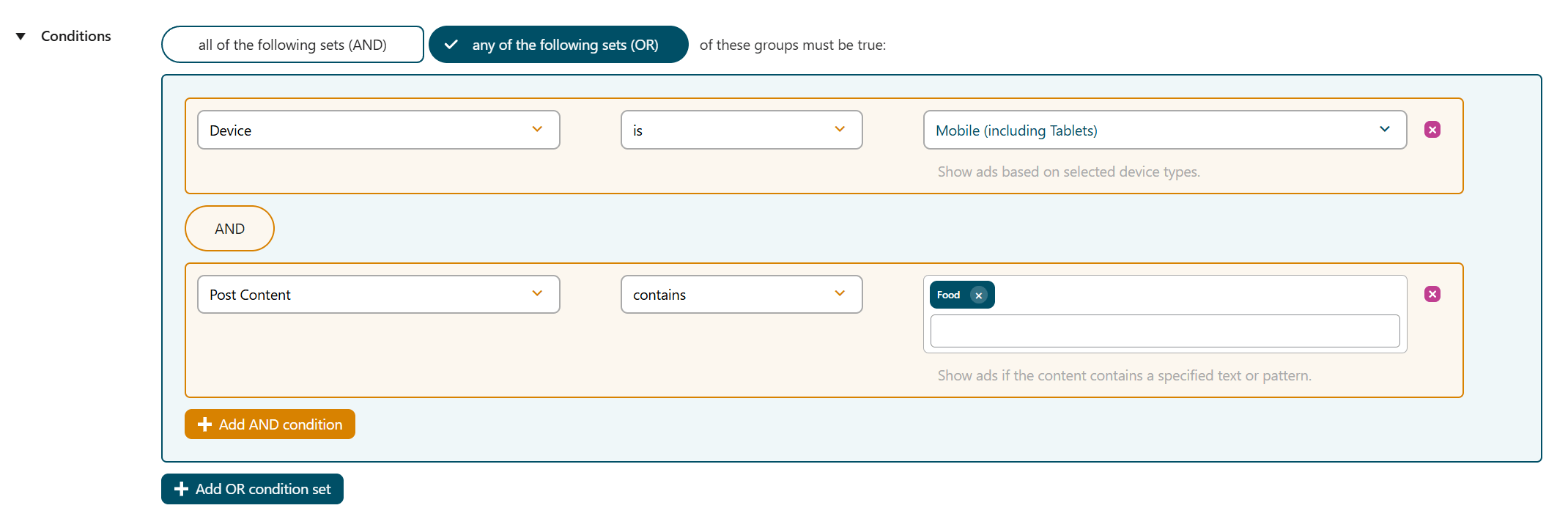
For more advanced setups, you can also combine multiple condition sets. This approach allows you to build highly tailored targeting rules.
A common structure is to connect two condition groups with OR, where each group contains conditions linked with AND. For example:
Content Age = older than 7 days AND Post Type = Post

OR

Post Content contains “Food” AND Post Type = Page
In this scenario, the ad appears if either of these condition sets matches. The page could contain the Food tag — or it could simply be a post older than 7 days.
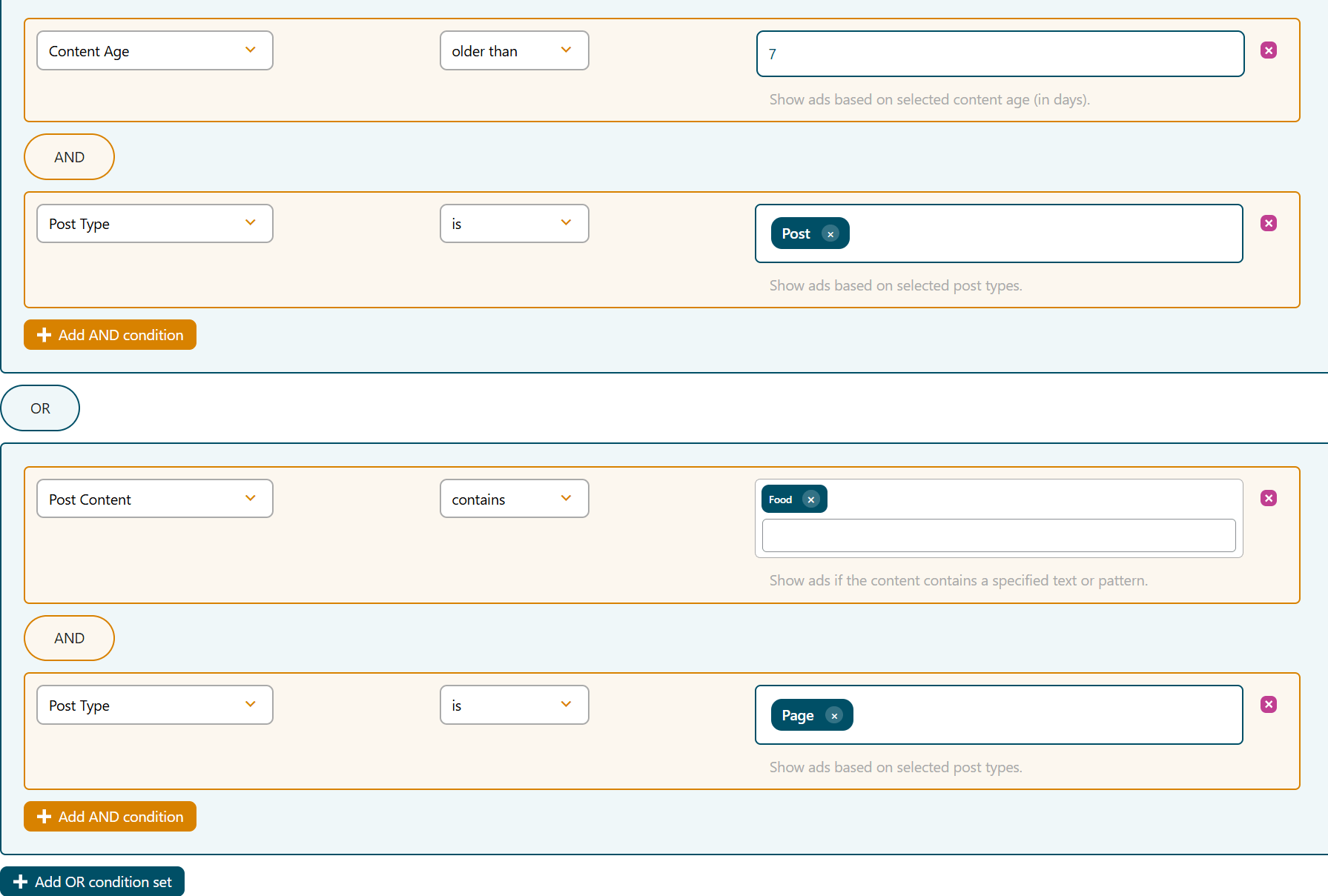
You can also invert the logic and combine conditions differently. For instance:
Content Age = older than 7 days OR Post Content contains “Food”

AND

Post Type = Post OR Post Type = Page
Here, each block offers alternatives, but both blocks must still pass for the ad to appear.
Technically, you can add as many conditions as you like. However, remember that conditions always restrict ad delivery.
That means, each additional rule narrows the number of situations in which the ad may appear. While this narrowing can improve targeting and relevance, it also reduces the ad’s overall impression count.
For that reason, it’s usually best to start with a simple setup and only add more conditions when you need finer control over where your ads are displayed.
If an ad, ad group, or placement with assigned conditions does not appear as expected, the cause is usually related to the configuration of those conditions. Since conditions filter injected ads, even small logical mistakes can prevent an item from appearing.
Two common causes are:
the_content filter in the active theme, which lets the entire content placement injection fail.The most reliable way to isolate the issue is to remove all conditions from the item temporarily. If the ad appears in the expected position without any conditions, the placement itself is working correctly, and the problem lies in the condition setup.
In many cases, the reason is simply that the defined rules cannot be true simultaneously. This issue can happen when combining several restrictive conditions in a way that no page or visitor can actually match.
If you are working with multiple conditions, it is often helpful to simplify the setup and rebuild it step by step. Start with a single condition and confirm that it works as expected. Then add a second rule and observe how the AND or OR operator changes the outcome. This incremental approach makes it much easier to understand how the conditions interact.
Another useful tool is the Debug Mode for the affected ad or placement. When enabled, it helps you verify in the frontend whether the conditions allow it to render.
Tip: AdPresso also includes a General Fallback mechanism. If an ad fails to load because the conditions logically prevent it from appearing, the fallback system can automatically fill the impression with an alternative ad rather than leaving the placement empty.
