Not every visitor on your website is the same. Your audience could be a mix of casual readers, logged-in subscribers, and team members like editors or administrators. The User Role condition, available exclusively in AdPresso Pro, allows you to align your ad delivery with these specific segments in real time.
Instead of a "one-size-fits-all" approach, this Pro feature lets you define exactly who should see an ad and who should not. It provides a professional way to separate monetization logic from user experience. Whether you want to exclude internal staff from seeing ads, protect premium areas, or tailor exclusive offers to specific audience segments, the User Role condition handles it all without touching your core content.
Role-based targeting is the most effective way to differentiate between anonymous visitors and logged-in users. Instead of hardcoding exceptions into your site’s code, you define clear rules once and let AdPresso manage the visibility dynamically.
AdPresso automatically detects all existing WordPress user roles on your site, including custom roles from membership or e-commerce plugins, and makes them available for selection.
You can apply the condition to individual ads, ad groups, or entire placements.
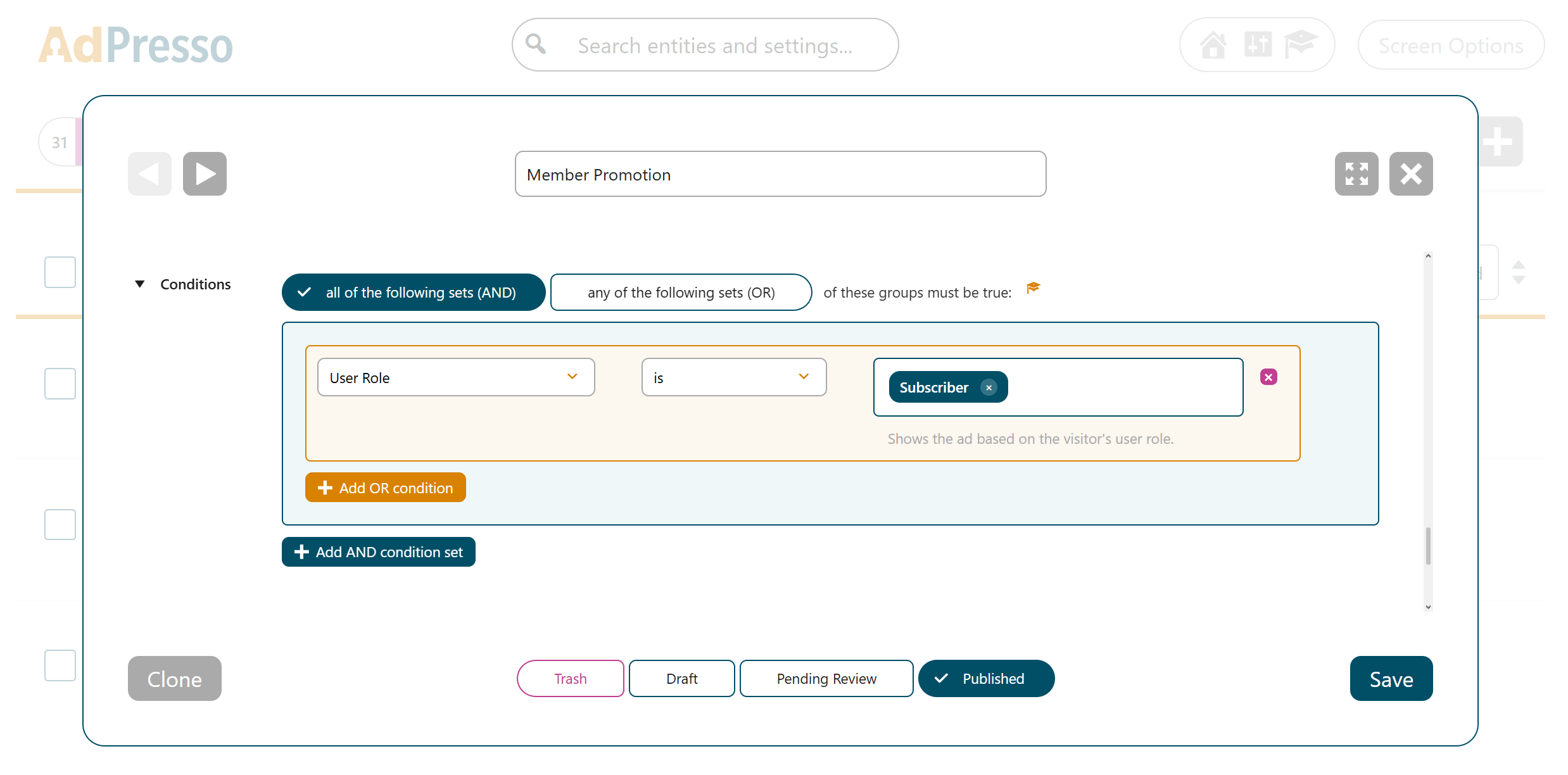
The item will now only load if the user’s role matches your logic. If no user is logged in, AdPresso treats the visitor as a guest, allowing you to target or exclude unauthenticated traffic explicitly.
For a detailed explanation of how to use conditions in general, see the understanding conditions documentation.
In addition to condition-based targeting, AdPresso includes a global option to deactivate ads entirely for specific user roles. You can find this under AdPresso > Settings > General > Activate Ads.

In this scenario, you want to display a specific campaign, such as a loyalty discount, exclusively to your registered members.
A typical use case is an e-commerce platform running a retention campaign. Since the offer is meant as an upsell for existing customers, it should remain invisible to anonymous visitors to maintain the offer's exclusivity. Instead of building complex page templates, you simply use the User Role condition to restrict the visibility of your promotion (e.g., a specific popup).
From this point on, the campaign is "member-aware." It will automatically appear for logged-in users with the correct permissions, while remaining completely hidden from the general public.
